Safe Exam Browser implementation Guide
1. Safe Exam Browser installation
Safe Exam Browser (SEB) is an educational and reference software designed for desktop and mobile devices. It is used for educational and training purposes, allowing you to temporarily turn any computer into a secure workstation that operates seamlessly within a web browser environment.
SEB enables control over access to resources such as system functions, third-party websites, and applications, preventing the use of unauthorized resources during an assessment.
The full user manual for Safe Exam Browser for Windows is available at this link.
The installation procedure is straightforward. Follow these steps:
- Download and install Safe Exam Browser from the official website.
- Select the latest version of SEB Exam Browser (available for macOS or Windows).
- You will be redirected to sourceforge.net, where the download of the setup file will begin after a few seconds. In some cases, you may need to grant your browser permission to download.
- Run the installation file
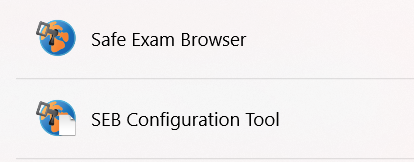
setup.exeas an administrator. Check the box to agree to the license terms and conditions, then start the installation. Wait for it to complete. - Two shortcuts will appear on your device: Safe Exam Browser and SEB Configuration Tool.
2. Proctoring template configuration
To use Safe Exam Browser, you need to configure specific settings for templates or sessions in the OctoProctor proctoring system.
Go to the "Addons" tab of your template or session and enable the "seb" addon: Allow launching only from SEB (Safe Exam Browser).
NOTE: Some add-ons related to the participant interface may not function properly in Safe Exam Browser, including:
- calculator widget (
calculator)- chat with the proctor (
chat)- allow uploading files to chat (
upload)- allow participants to finish the session (
finish)
So in order for these elements to appear, please make sure the following add-on is enabled: Webcam preview and toolbar (preview)
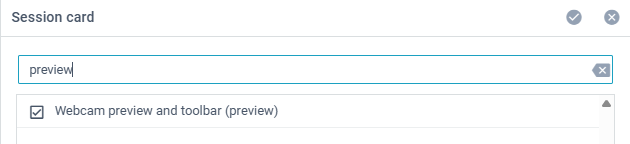
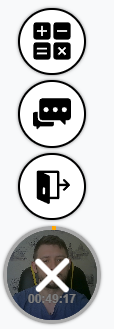
As a result of these actions, a preview window with a toolbar (preview) will be available on the participant's interface side.
3. SEB Configuration Tool settings
NOTE: To ensure SEB functions correctly with the screen-sharing required by OctoProctor, please verify that the following settings are configured under the Security tab.
Windows:
- Enable 'Allow remote session/screen sharing'
- Enable 'Kiosk Mode - Create new desktop'
- Enable 'Allow screen capturing and recording'
- Disable 'SEB Service - Ignore SEB service'
- Choose 'allow to use SEB only with service'
macOS:
- Enable 'System lockdown -> Kiosk Mode (win) - create new desktop'
- Enable 'Allow screen capture/recording'
- Enable 'Allow window capture (screen shots)'
- Disable 'Prefer Assessment Mode (AAC)'
- Disable 'SEB Service - Ignore SEB service'
- Choose 'allow to use SEB only with service'
Before starting an assessment with proctoring, configure SEB using the SEB Configuration Tool. Follow these steps:
- Launch the SEB Configuration Tool.
-
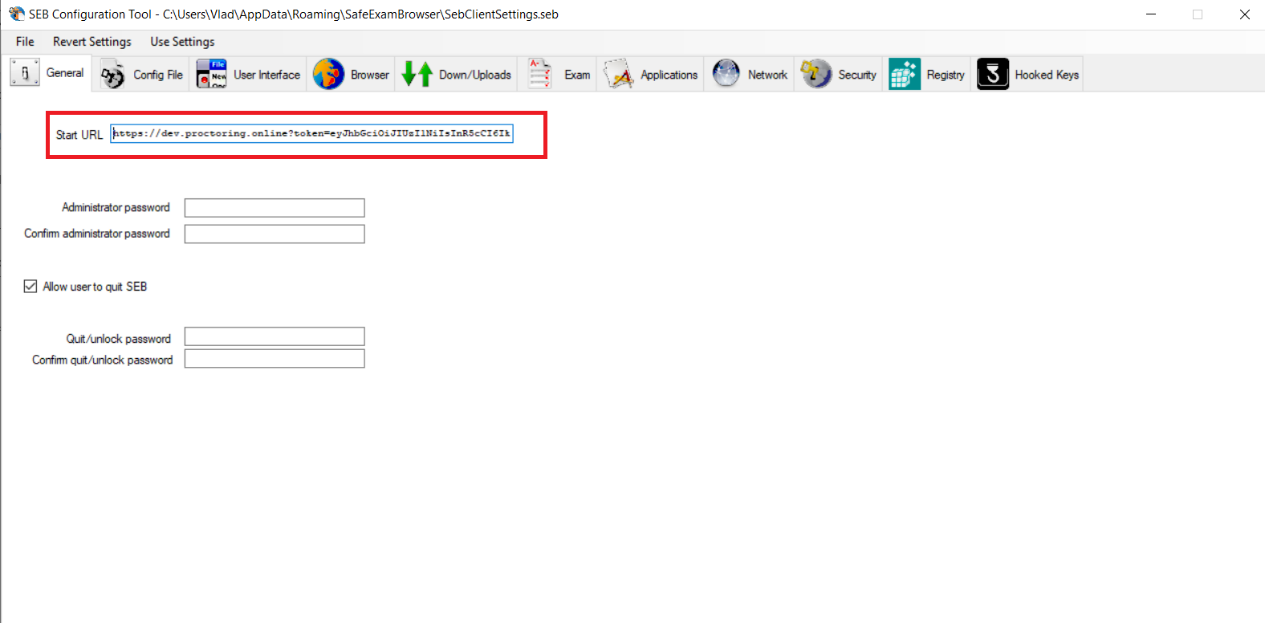
In the "General" menu, insert the link to the assessment page in the "Start URL" field.
-
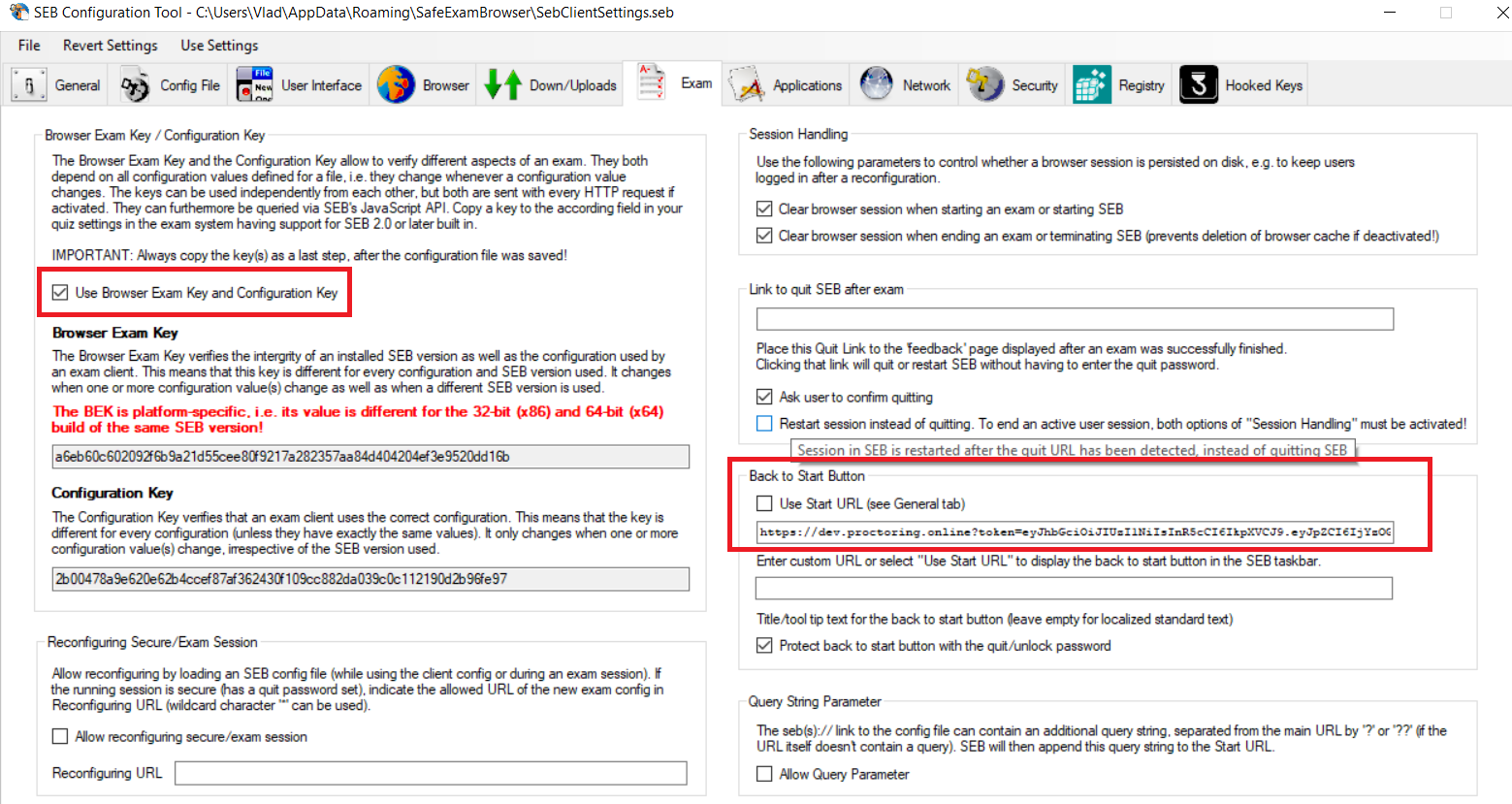
In the "Exam" menu, check the "Use Browser Exam Key and Configuration Key" option to avoid an error about an unsupported browser during the equipment check. Also, insert the assessment page link in the "Back to Start Button" field.
-
In the "Application" tab, add applications (executable
.exefiles) to block during the session. Click "Choose application" and select each application to block. Unlisted applications will remain accessible during the assessment.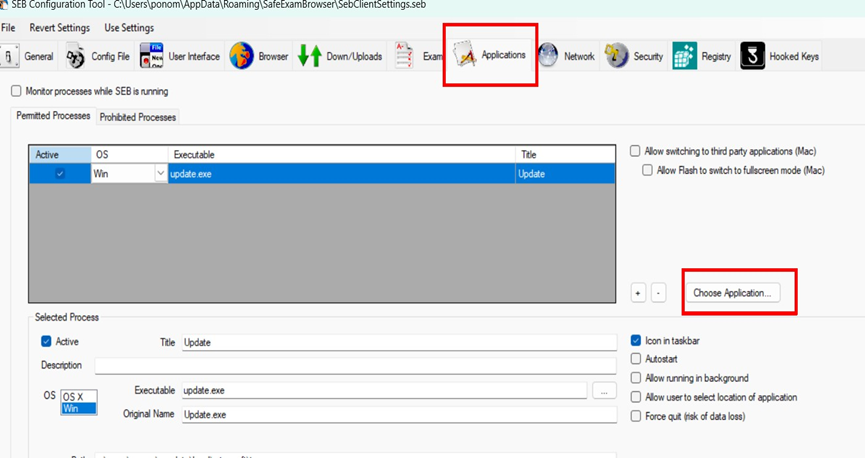
-
To apply the settings, click "Use Settings" → "Configure Client".
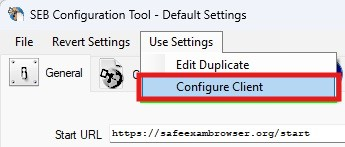
This completes the basic setup.
4. SEB video playback
Safe Exam Browser does not support some video formats. If your assessment includes an embedded MP4 video, it will not play.
A solution is to convert the video to a supported format, such as .webm.
5. SEB file saving
To standardize browser settings across all test-takers' devices, save the settings file and distribute it to participants.
Save the file via "File" → "Save Settings As...":
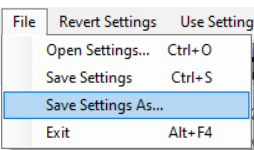

Participants must then upload the settings file into their browser instances using "File" → "Open Settings...".
6. User cases
Real-world examples of current system users:
Case 1: Conducting Professional Online Certifications
Requirements: The Company conducting online certifications must comply with government agency requirements.
A key requirement is implementing a comprehensive monitoring system to record the assessment, check the background for foreign objects or people, and restrict the use of additional software and internet resources.
Solution: Integrating the OctoProctor proctoring system with Safe Exam Browser enabled the Company to maintain a full media protocol of the assessment, conduct online observation, record webcam and browser activity, and use AI-proctoring metrics (e.g., the b2 metric for tab changes) to detect rule violations. SEB blocked prohibited applications on participants' devices.
Result: The Company received permission to conduct certifications. During inspections, it can provide protocols with noted violations. Participants receive valid qualification documents from an authorized company.
Case 2: Conducting Entrance Assessments to a Private Educational Institution
Requirements: Prohibit use of unauthorized programs on the PC while allowing specific internet resources, enable direct communication with the teacher during the assessment, and monitor dozens of participants with limited administrative resources.
Solution: Using OctoProctor with Safe Exam Browser, one teacher (proctor) can monitor up to 30 participants simultaneously with automated notifications and communicate via text, video, or audio. SEB's "Exam" and "Network" settings block third-party applications while permitting access to approved resources, and it can restrict keyboard shortcuts and file uploads/downloads.
Result: Controlled selection ensures test-takers meet the institution's standards and have verified knowledge levels. Test-takers' success in regional and national competitions enhances the institution's reputation, attracting sponsors and applicants.