Use case for Google Forms and Microsoft Forms
1. Using Google Forms
To open Google Form with proctoring follow these steps:
-
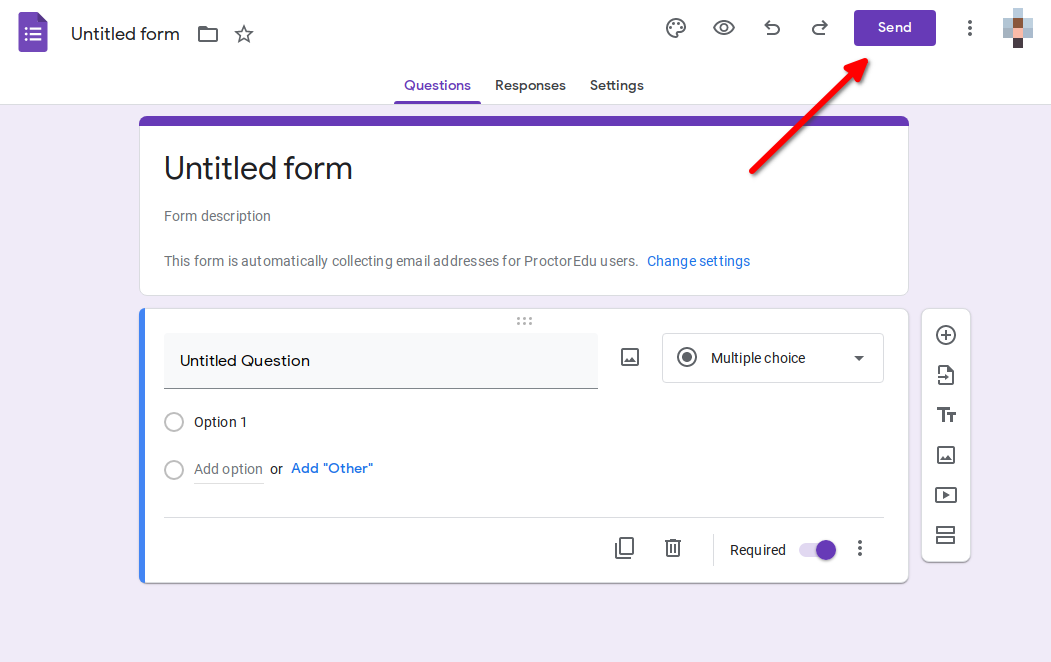
Open the form in edit mode, then press the "Send" button:
-
Then copy the link that appears in the
<>tab: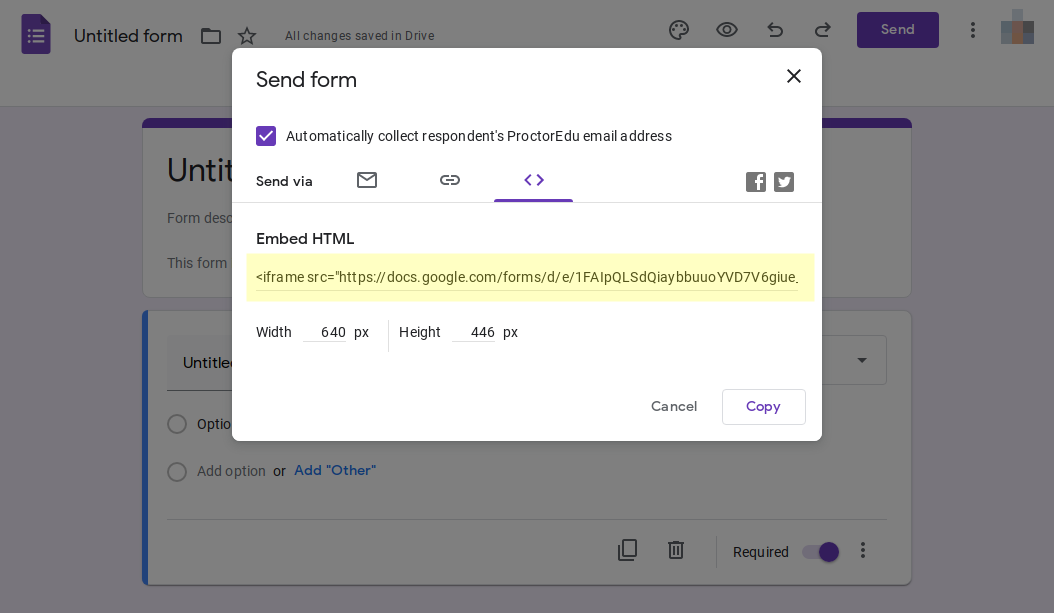
You will receive a code like the one below (see the "src" attribute):
<iframe src="https://docs.google.com/forms/d/e/1F3IpQLSaaaanf6HiHIIXgDqozfEoFsNIfrC1RTbdggT-F2SMSyo7FmEFgQ/viewform?embedded=true" width="640" height="800" frameborder="0" marginheight="0" marginwidth="0">Loading...</iframe>
-
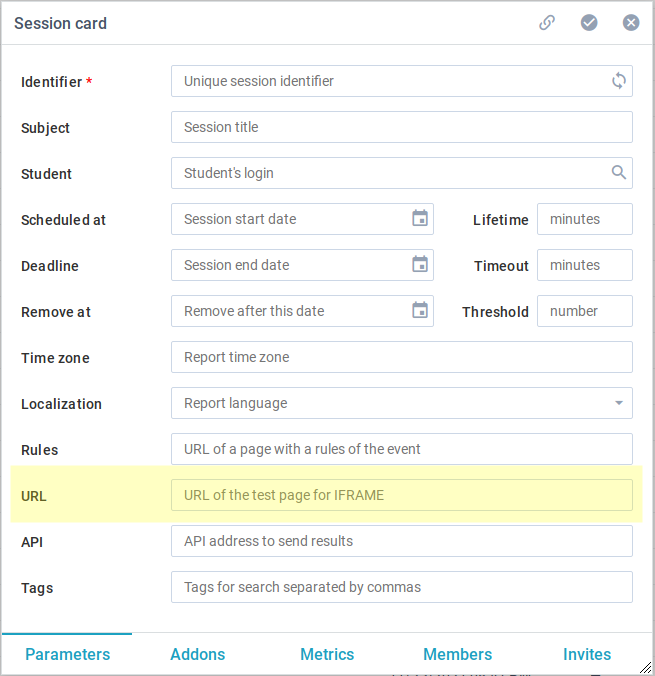
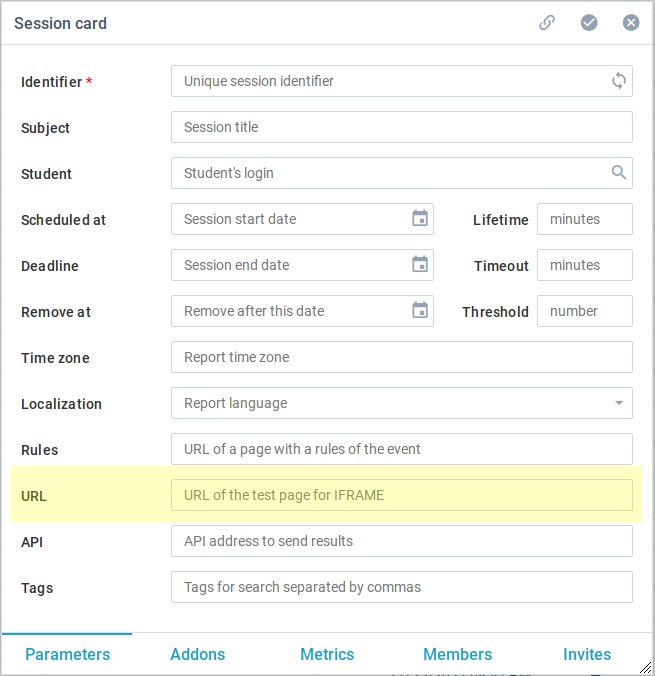
Paste the copied link into the "URL" field in the session card:
2. Using Microsoft Forms
To open Microsoft Form with proctoring, follow these steps:
-
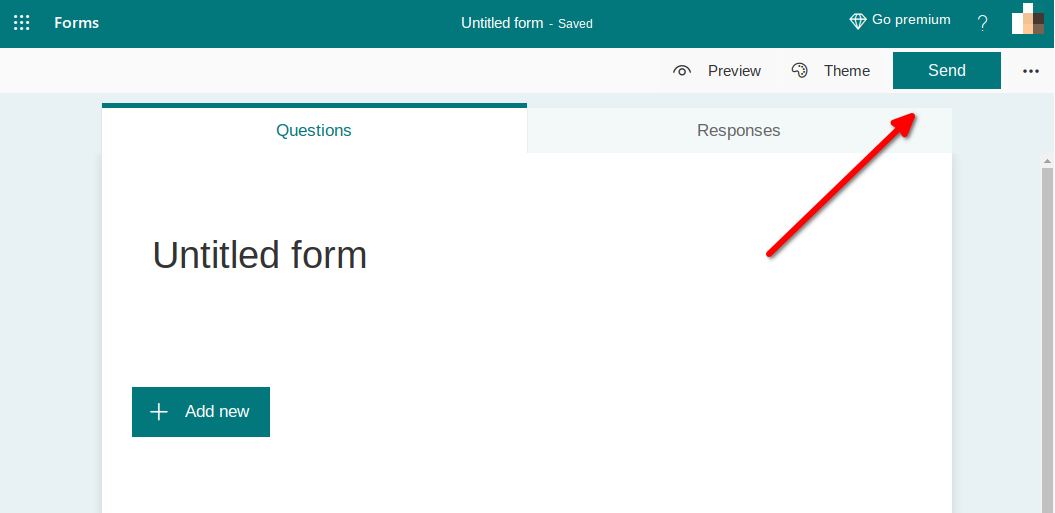
Open the form in edit mode, then press the "Send" button:
-
Then copy the link that appears in the
</>button: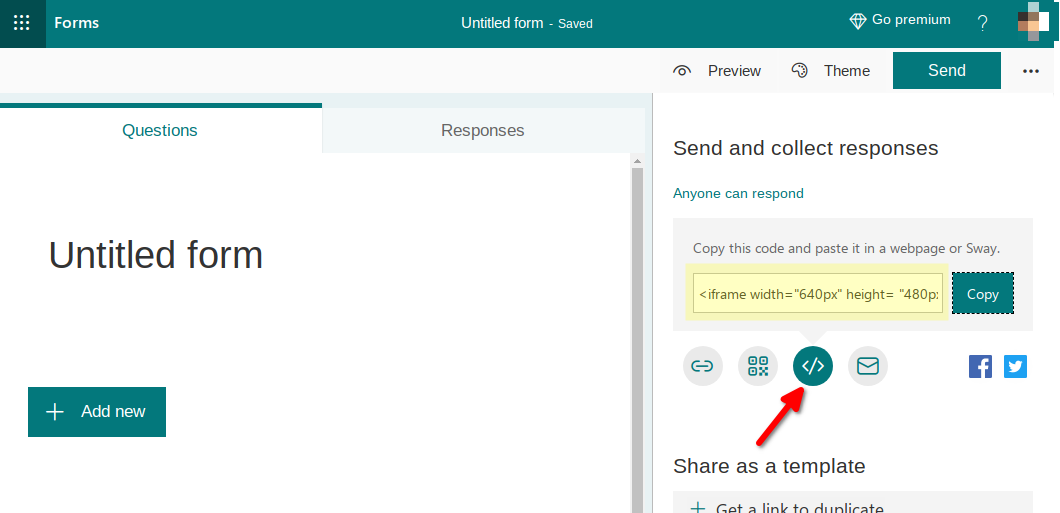
You will receive a code like the one below (see after the "src" attribute):
<iframe width="640px" height="480px" src="https://forms.office.com/Pages/ResponsePage.aspx?id=DQSIkWdsW0yxEjajBLZtsdfsdrQAAAAAAAAAAAAMAACT6p7ZUQTUyVUxKM1VBMjhPR1cySVgwNEVBS05RVC4u&embed=true" frameborder="0" marginwidth="0" marginheight="0" style="border: none; max-width:100%; max-height:100vh" allowfullscreen webkitallowfullscreen mozallowfullscreen msallowfullscreen>Loading...</iframe>
-
Paste the copied link into the "URL" field in the session card: